Text Input & Textarea
사용자로부터 텍스트를 입력받는 컴포넌트입니다.
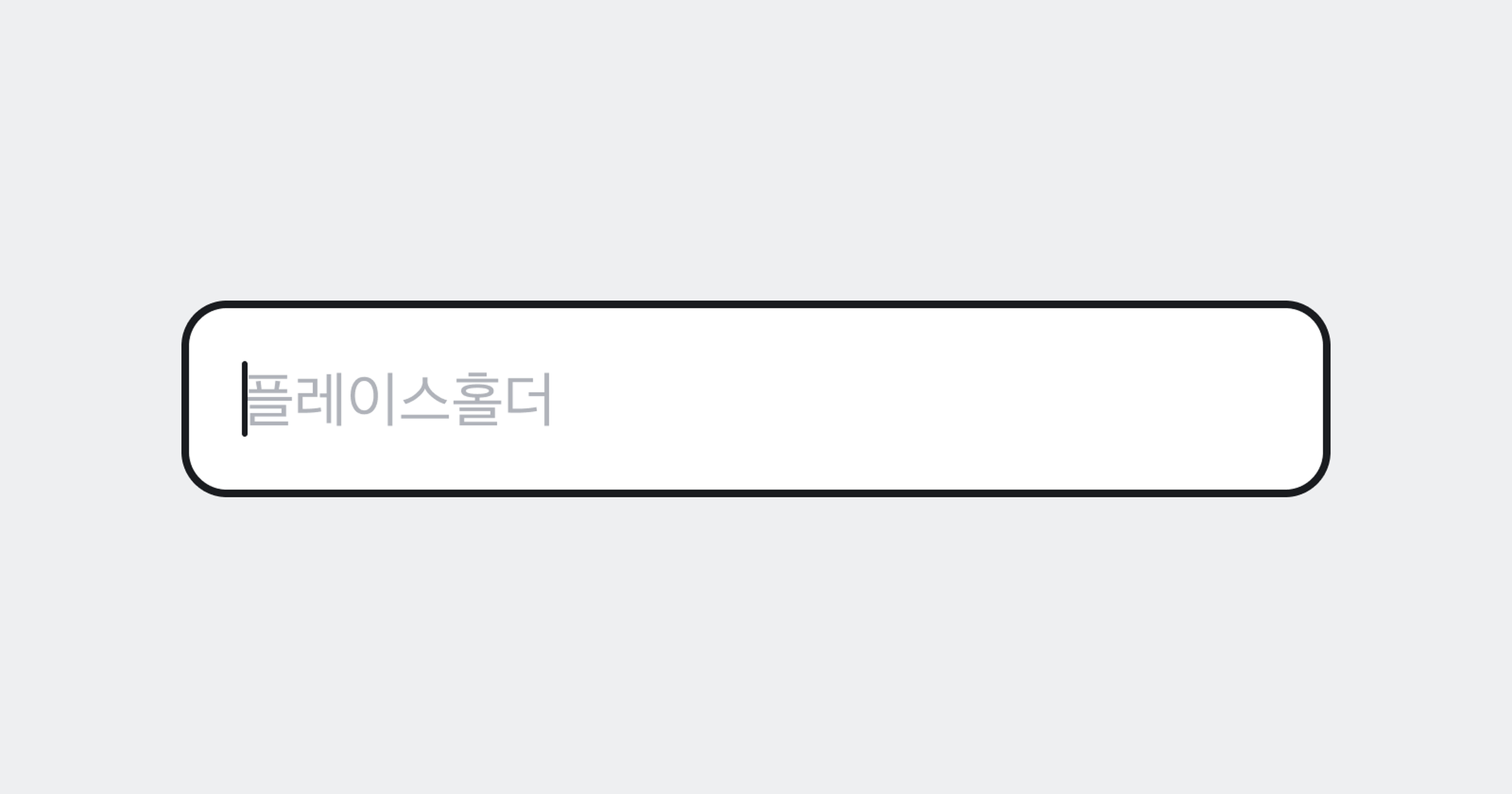
Text Input
한 줄 텍스트를 입력받는 컴포넌트입니다.
Field
Text Input을 Field 내부에서 사용하여 Text Field로 활용할 수 있습니다.
Anatomy
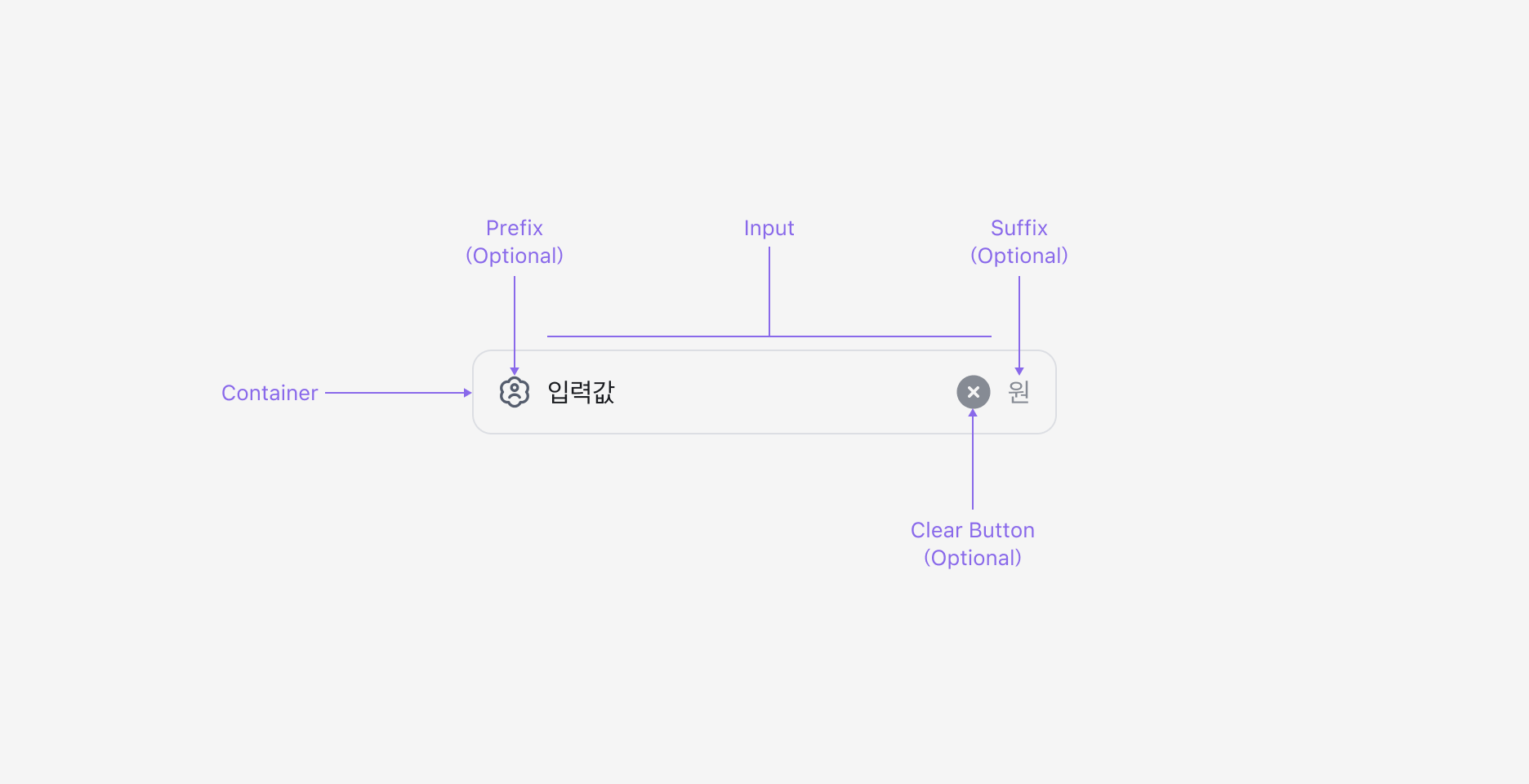
Text Input은 입력 필드, 이를 감싸는 Container, Clear Button (Optional), 그리고 Prefix/Suffix Slot으로 구성됩니다.
Properties
State
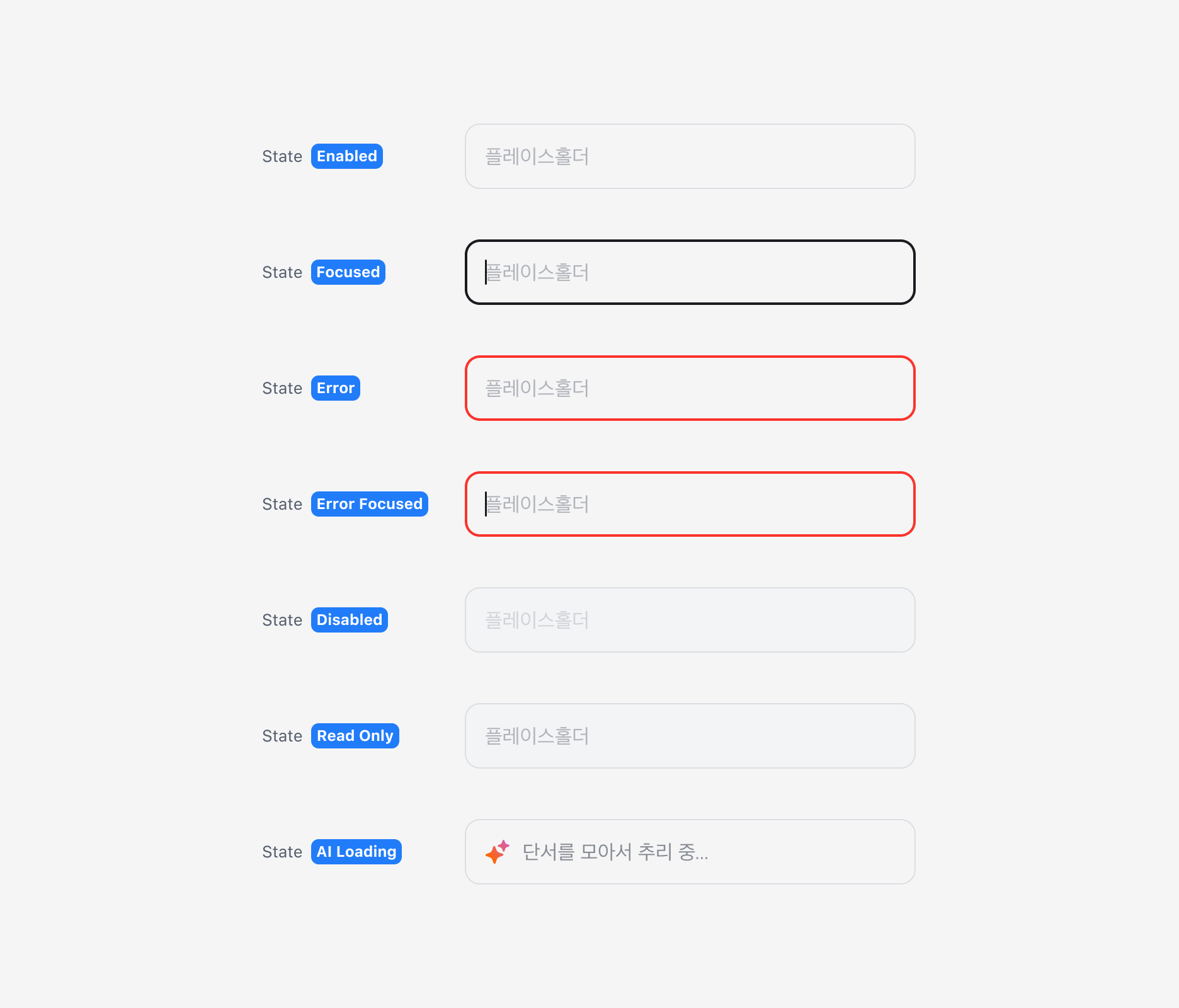
Text Input은 Enabled, Focused, Error, Error Focused, Disabled, Read Only, AI Loading (Figma Only) 상태를 가집니다.
Has Value Property
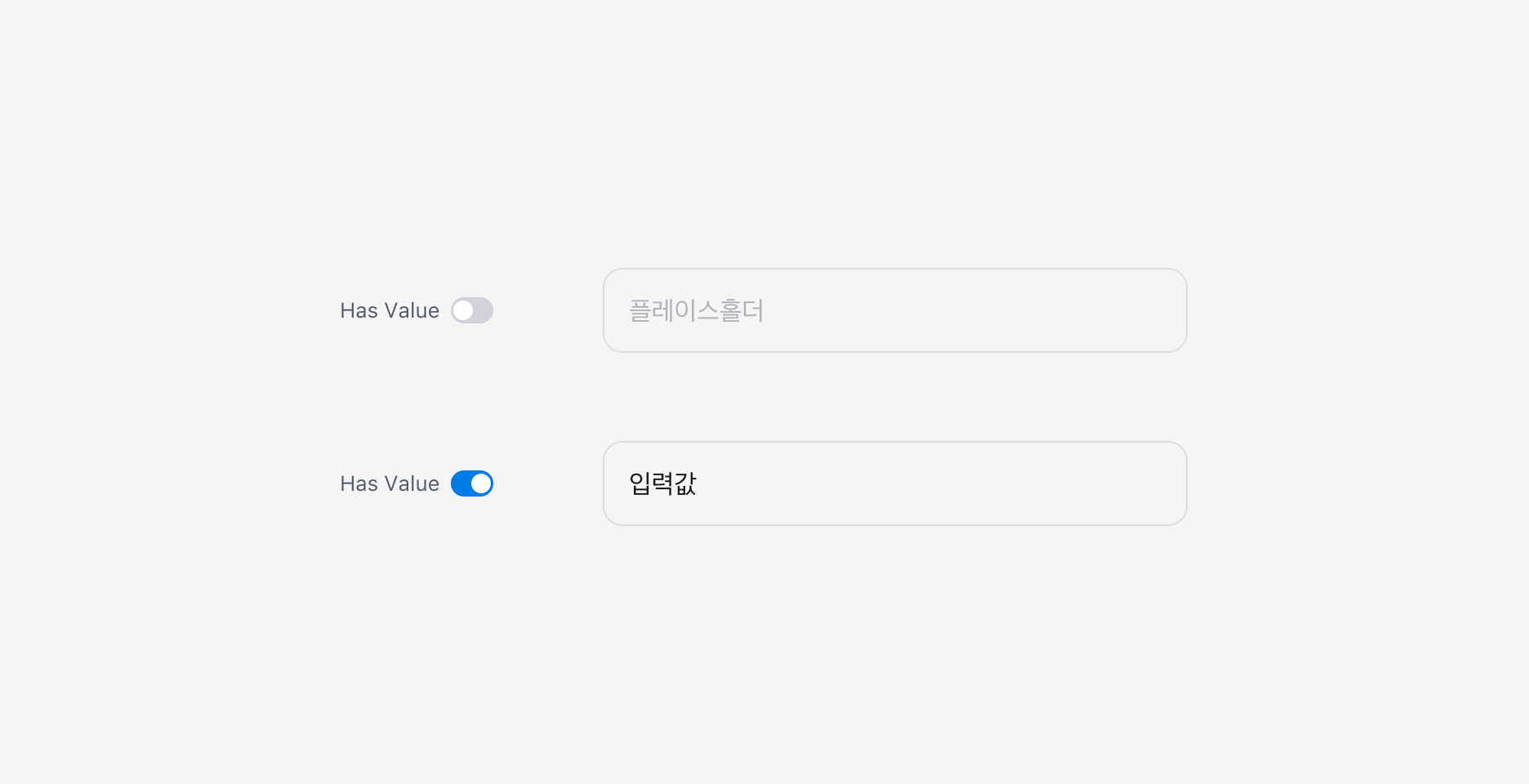
Text Input에 값이 있는 경우 Has Value Property를 사용할 수 있습니다.
Clear Button Property
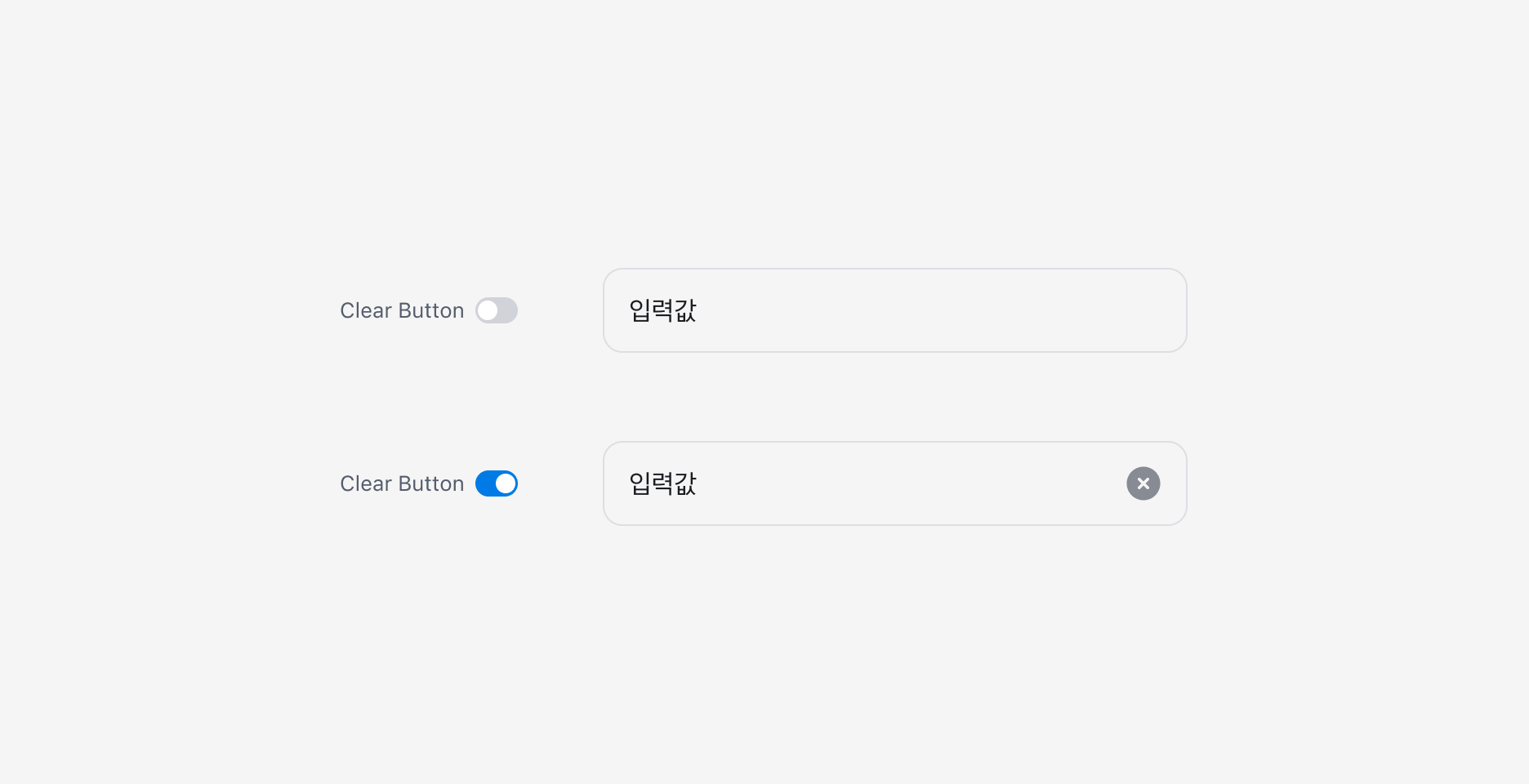
Text Input에 값이 존재하는 경우, 해당 값을 한 번에 삭제할 수 있는 Clear Button을 표시할 수 있습니다.
Variant
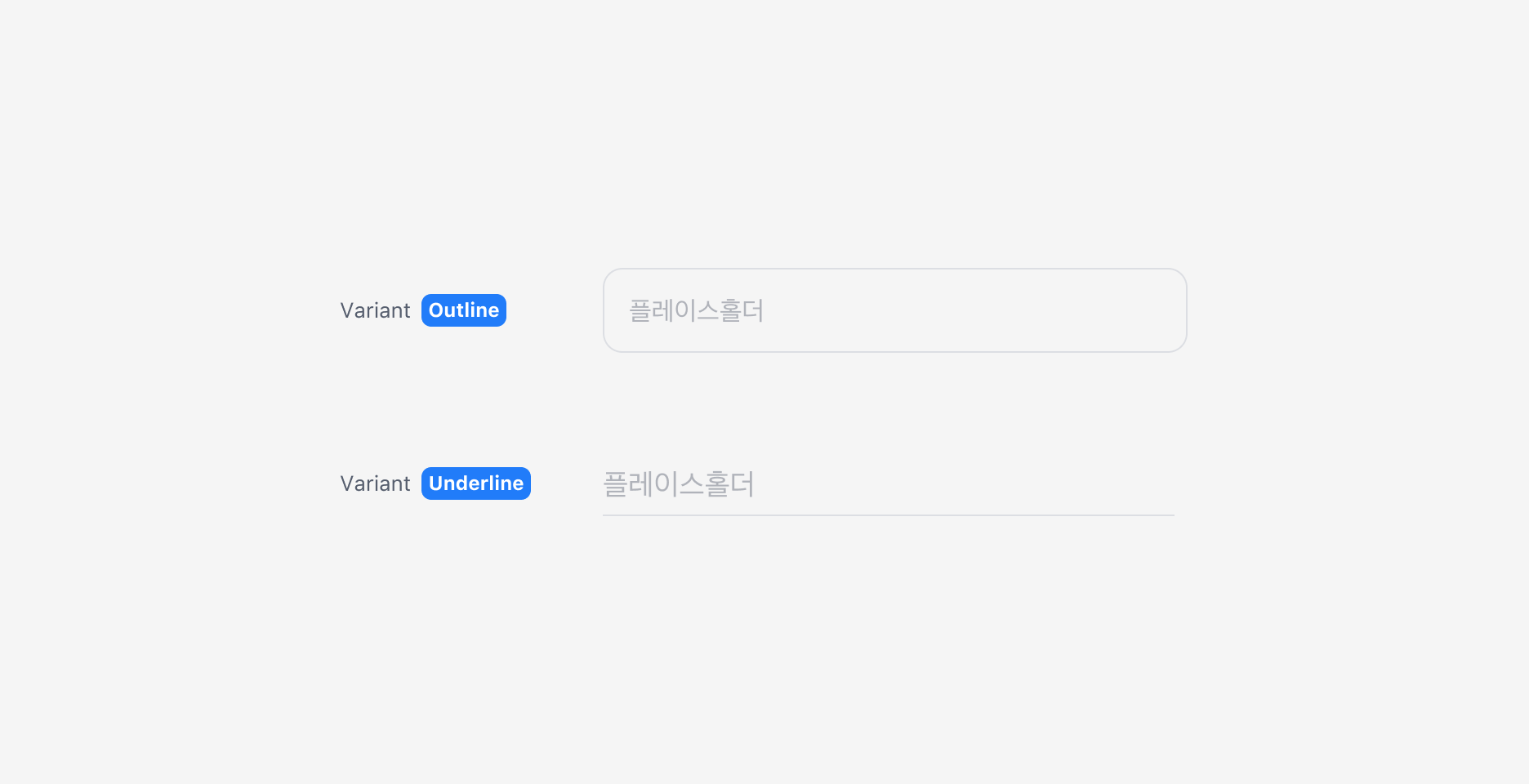
Text Input은 Outline과 Underline 두 가지 스타일을 제공합니다.
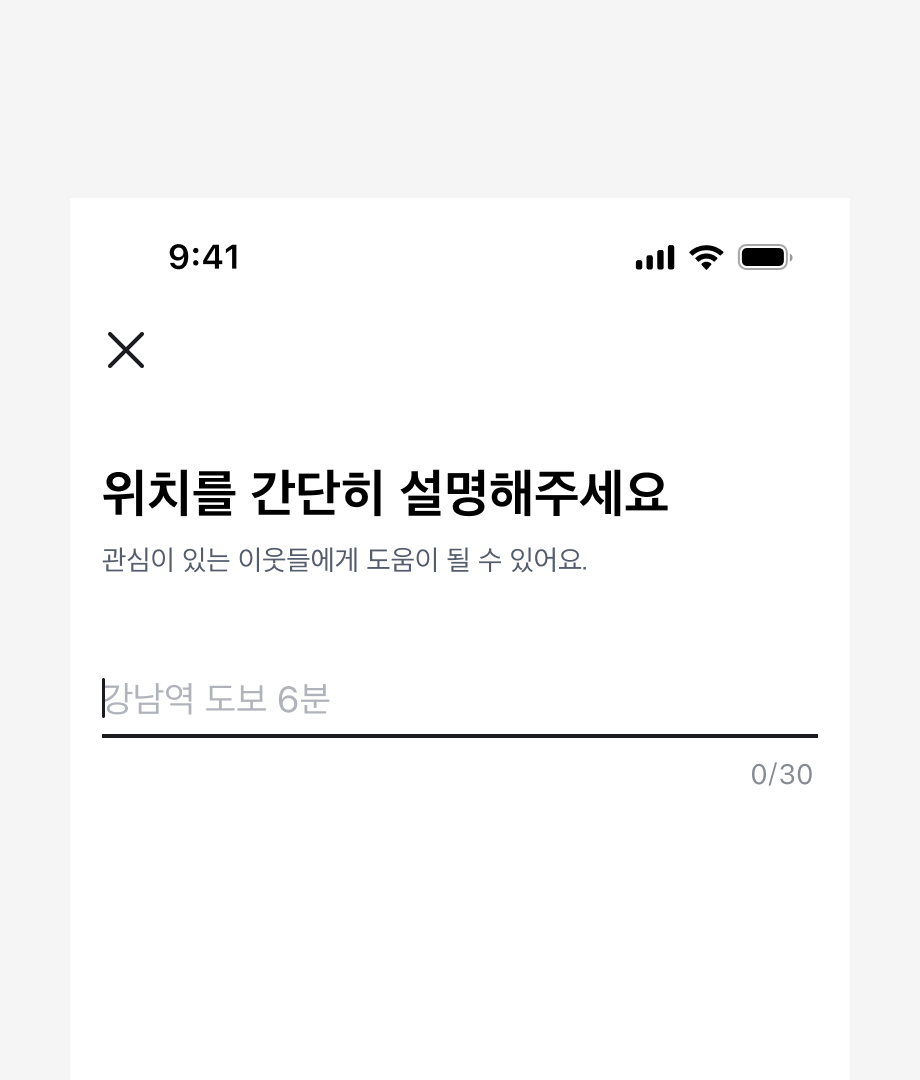
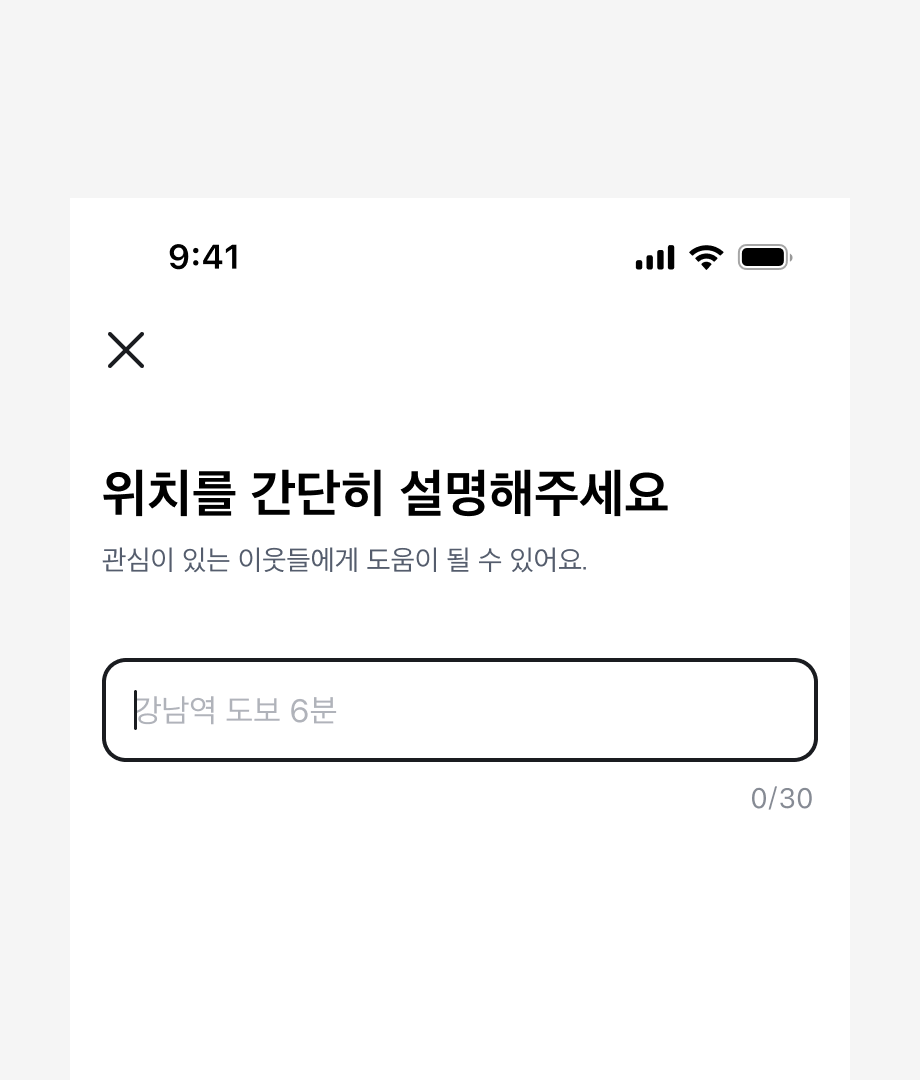
화면에 하나의 Input만 있는 경우 Underline 사용을 권장합니다.
Custom Input
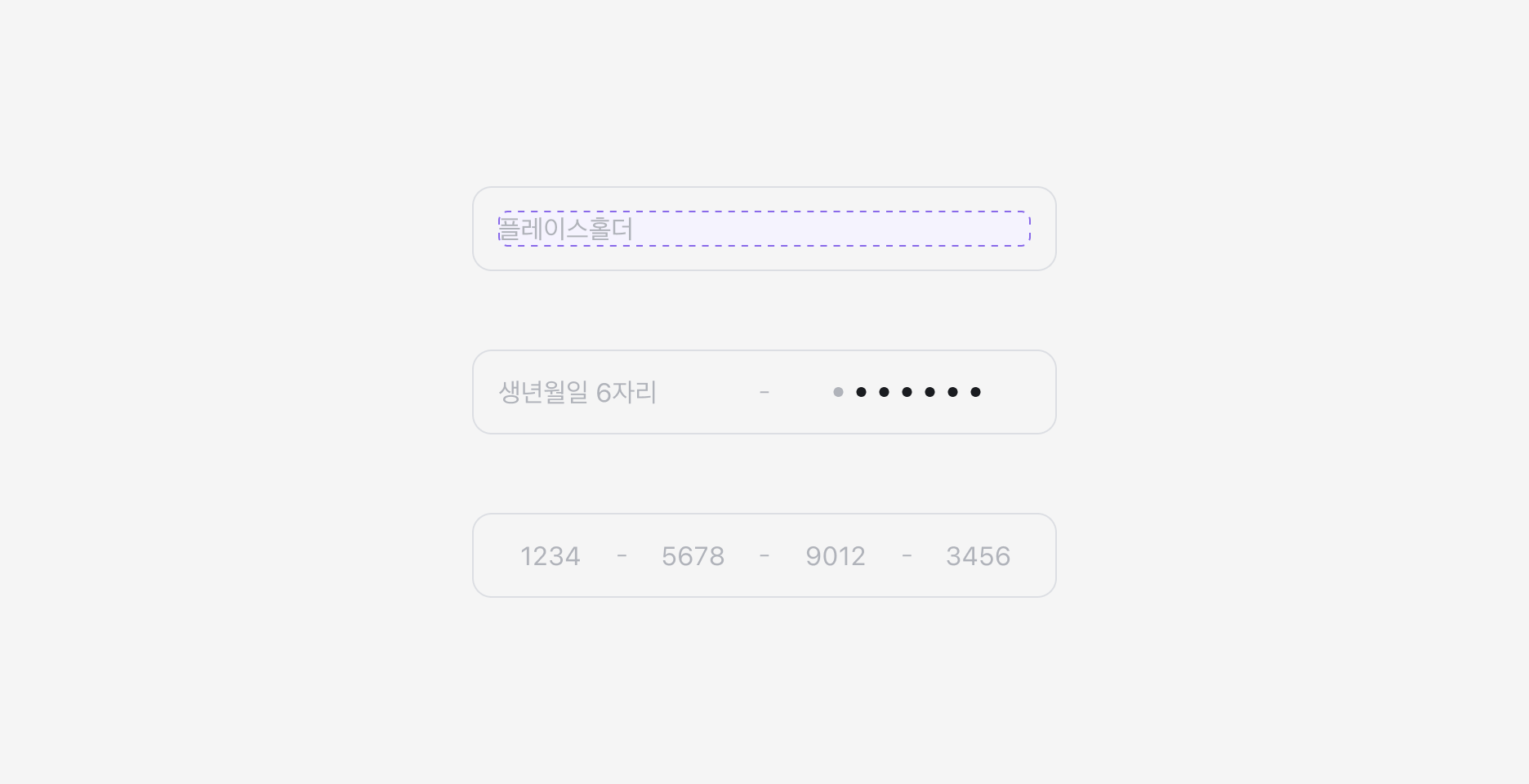
Text Input의 입력 영역은 Slot으로 구성되어 있습니다.
특수한 포맷이나 마스킹 등의 기능이 필요한 경우, 포맷과 동작을 직접 정의해서 사용할 수 있습니다.
Text Input을 2열로 구성하기
한 화면에서 입력할 내용이 많을 경우, Input을 2열 레이아웃으로 구성할 수 있습니다.
레이블과 입력값이 짧을 때만 사용하는 것을 권장하며, 레이아웃 사이 간격을 충분히 확보하여 사용자가 실수로 옆 Input을 선택하지 않도록 주의해주세요.
주민등록번호나 전화번호처럼 입력 형식이 정해진 경우, Input을 나누지 말고 값에 포맷을 자동으로 적용해서 추가 인터랙션 없이 한 번에 입력할 수 있도록 해주세요.
Textarea
여러 줄의 텍스트를 입력받을 수 있는 컴포넌트로, 자동 리사이즈를 지원합니다.
Field
Textarea를 Field 내부에서 사용하여 Textarea Field로 활용할 수 있습니다.
Anatomy
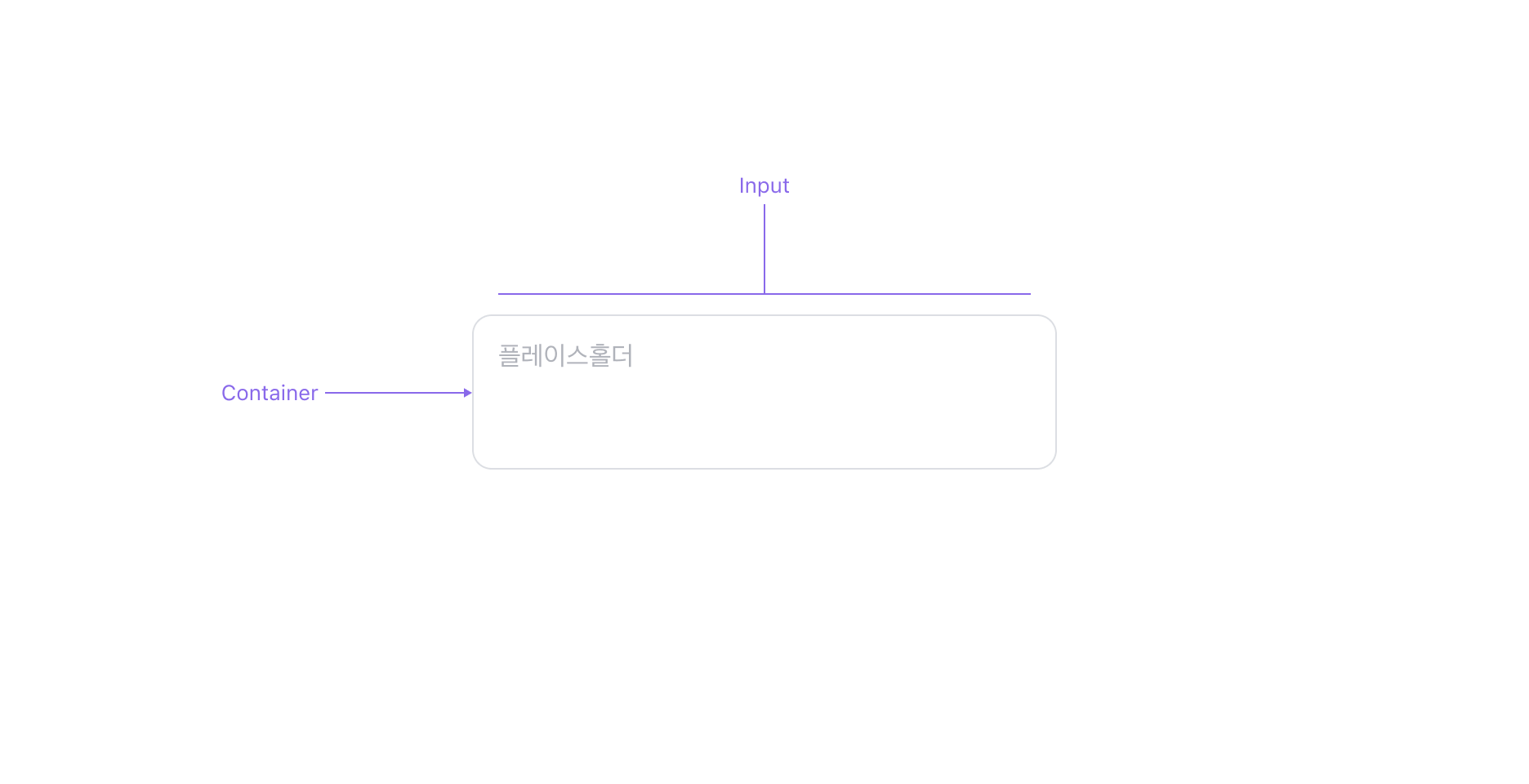
Textarea는 입력 필드, 이를 감싸는 Container로 구성됩니다.
Properties
State
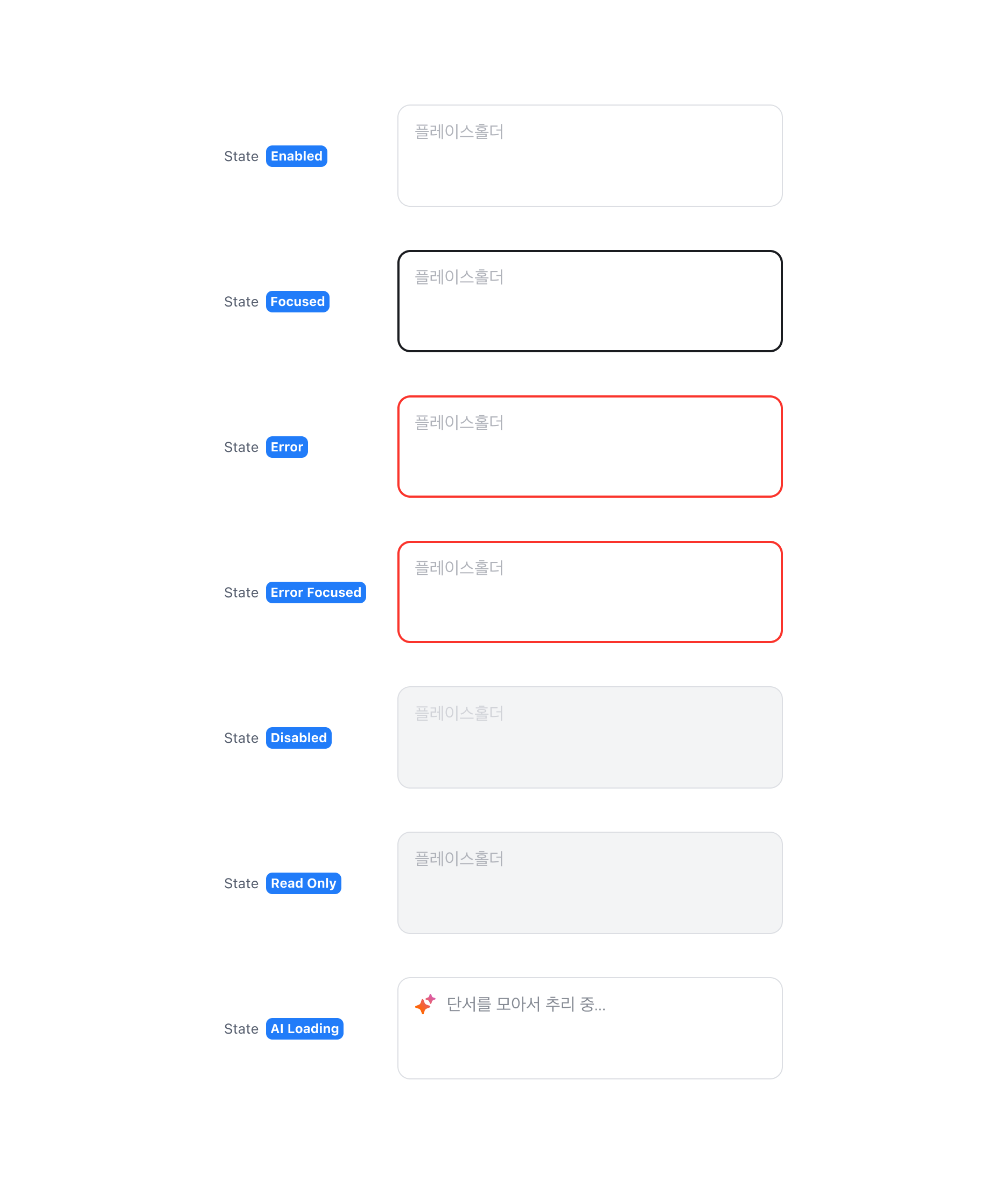
Textarea는 Enabled, Focused, Error, Error Focused, Disabled, Read Only, AI Loading (Figma Only) 상태를 가집니다.
Has Value Property
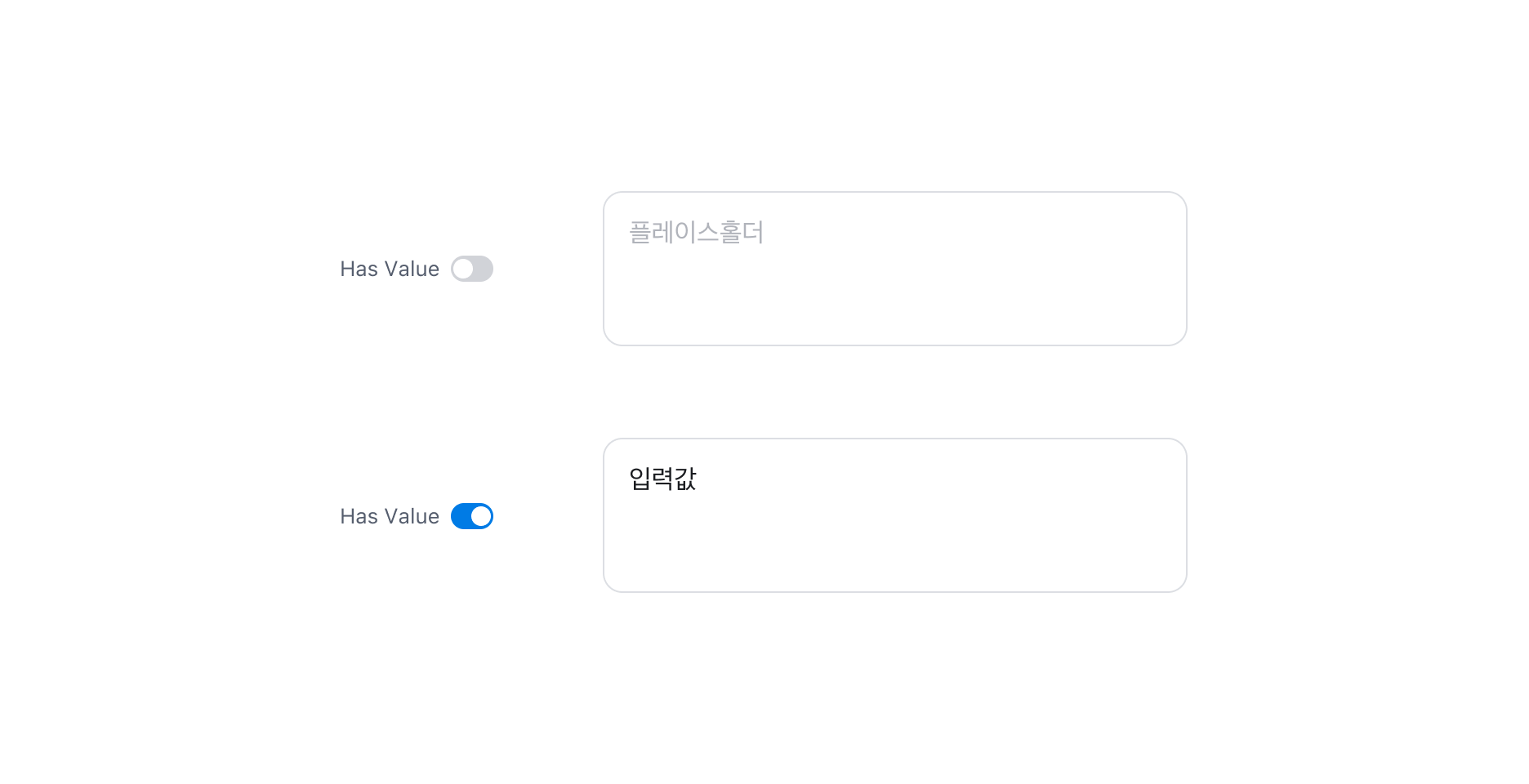
Textarea에 값이 있는 경우 Has Value Property를 사용할 수 있습니다.
Auto Size
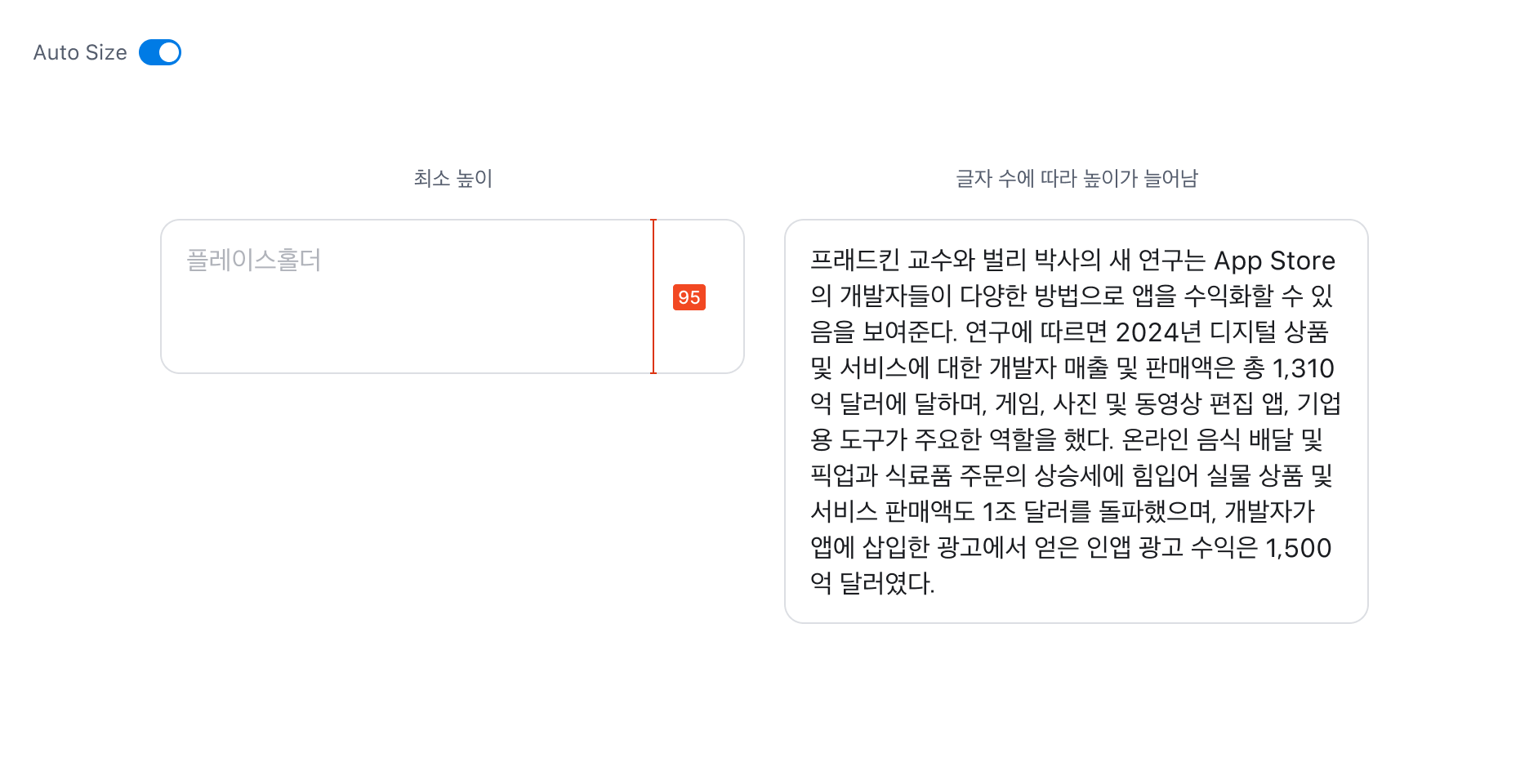
Auto Size 옵션을 사용하면 입력된 글자 수에 따라 Textarea의 높이가 자동으로 늘어납니다. 이 경우 Textarea의 최소 높이는 3줄(95px)을 유지해야 합니다. 최대 높이는 기본적으로 제한이 없으며, 필요에 따라 최대 높이를 별도로 지정할 수 있습니다.
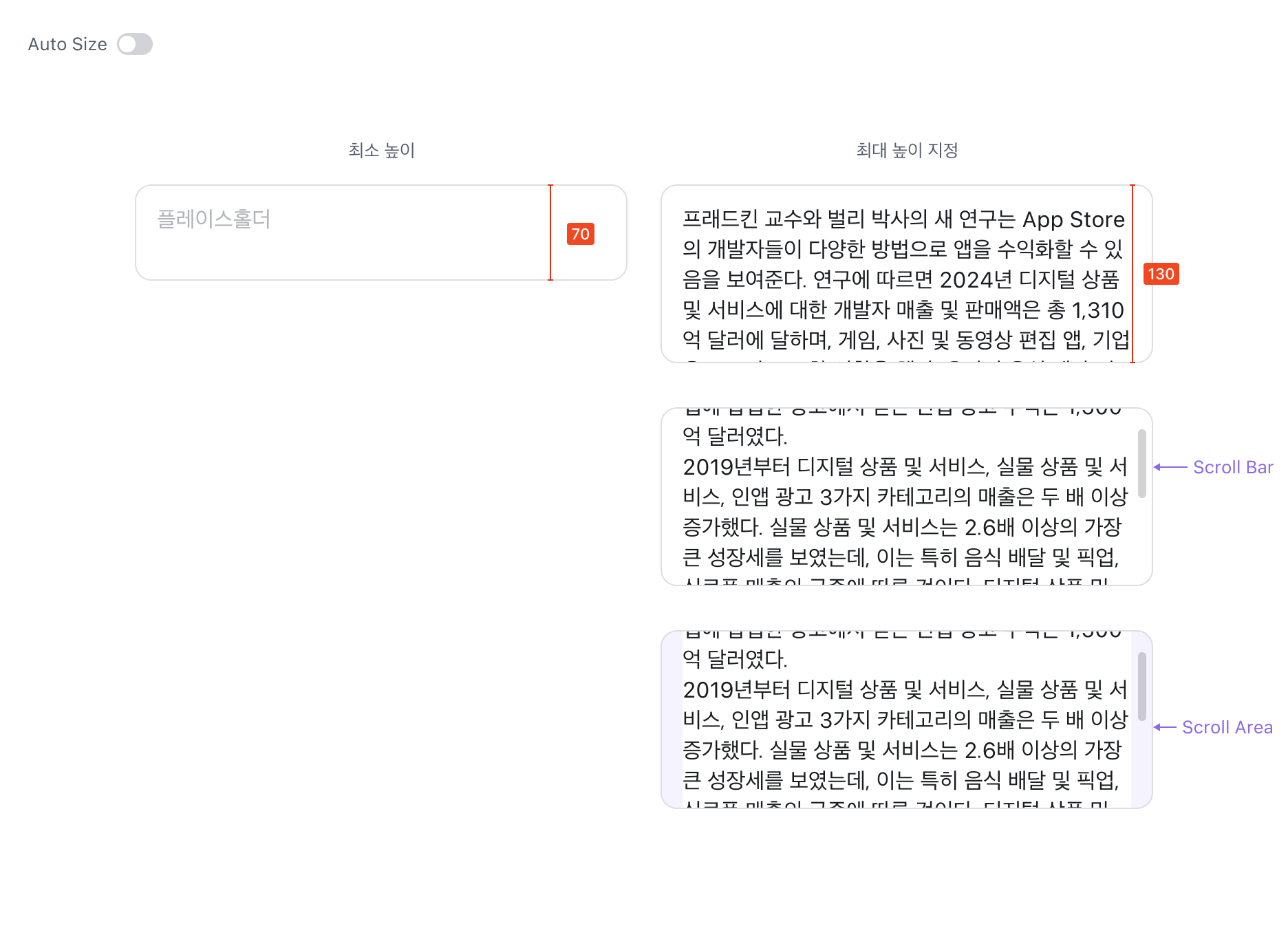
Auto Size를 비활성화할 경우, 최소 높이는 2줄(70px)이어야 합니다. 이때는 반드시 최대 높이 값을 지정해야 하며, 내용이 최대 높이를 초과하면 Input 영역 내에서 스크롤이 생성됩니다.
Specification
base
variant=outline
- 기본 스타일입니다.
variant=outline, size=large
- variant=outline: 기본 스타일입니다.
- size=large: 뷰포트 너비와 관계없이 사용할 수 있습니다.
variant=outline, size=medium
- variant=outline: 기본 스타일입니다.
- size=medium: Breakpoint `lg` 이상(데스크톱)에서만 사용하고, 모바일에서는 사용하지 않습니다. 정밀한 선택이 가능한 마우스 입력 환경에서 사이즈를 더 작게 만들고자 할 때 사용합니다.
variant=underline
- 화면에 하나의 Input만 있는 경우 사용을 권장합니다.
variant=underline, size=large
- variant=underline: 화면에 하나의 Input만 있는 경우 사용을 권장합니다.
- size=large: 뷰포트 너비와 관계없이 사용할 수 있습니다.
variant=underline, size=medium
- variant=underline: 화면에 하나의 Input만 있는 경우 사용을 권장합니다.
- size=medium: Breakpoint `lg` 이상(데스크톱)에서만 사용하고, 모바일에서는 사용하지 않습니다. 정밀한 선택이 가능한 마우스 입력 환경에서 사이즈를 더 작게 만들고자 할 때 사용합니다.
type=singleline
type=multiline, size=large
- 뷰포트 너비와 관계없이 사용할 수 있습니다.
type=multiline, size=medium
- Breakpoint `lg` 이상(데스크톱)에서만 사용하고, 모바일에서는 사용하지 않습니다. 정밀한 선택이 가능한 마우스 입력 환경에서 사이즈를 더 작게 만들고자 할 때 사용합니다.
Last updated on